

Skip to main content
Generate Payslips in HRM
Run monthly payroll and generate payslips for all employees — ready for review, payment, and audit tracking.
🔐 Access Control
- Only Admin users or payroll staff with payslip generation permissions can perform this action
- From the Dashboard, use the side menu to navigate: HRM → Payroll → Payslip
🧭 Step-by-Step: Generate Payslips
1️⃣ Select Payroll Period
- At the top of the Manage Payslip screen, use the dropdowns to choose:
- Month (e.g.
NOV) - Year (e.g.
2025)
- Month (e.g.
✅ This defines the payroll cycle for which payslips will be generated
2️⃣ Generate Payslips
- Click the Generate Payslip icon
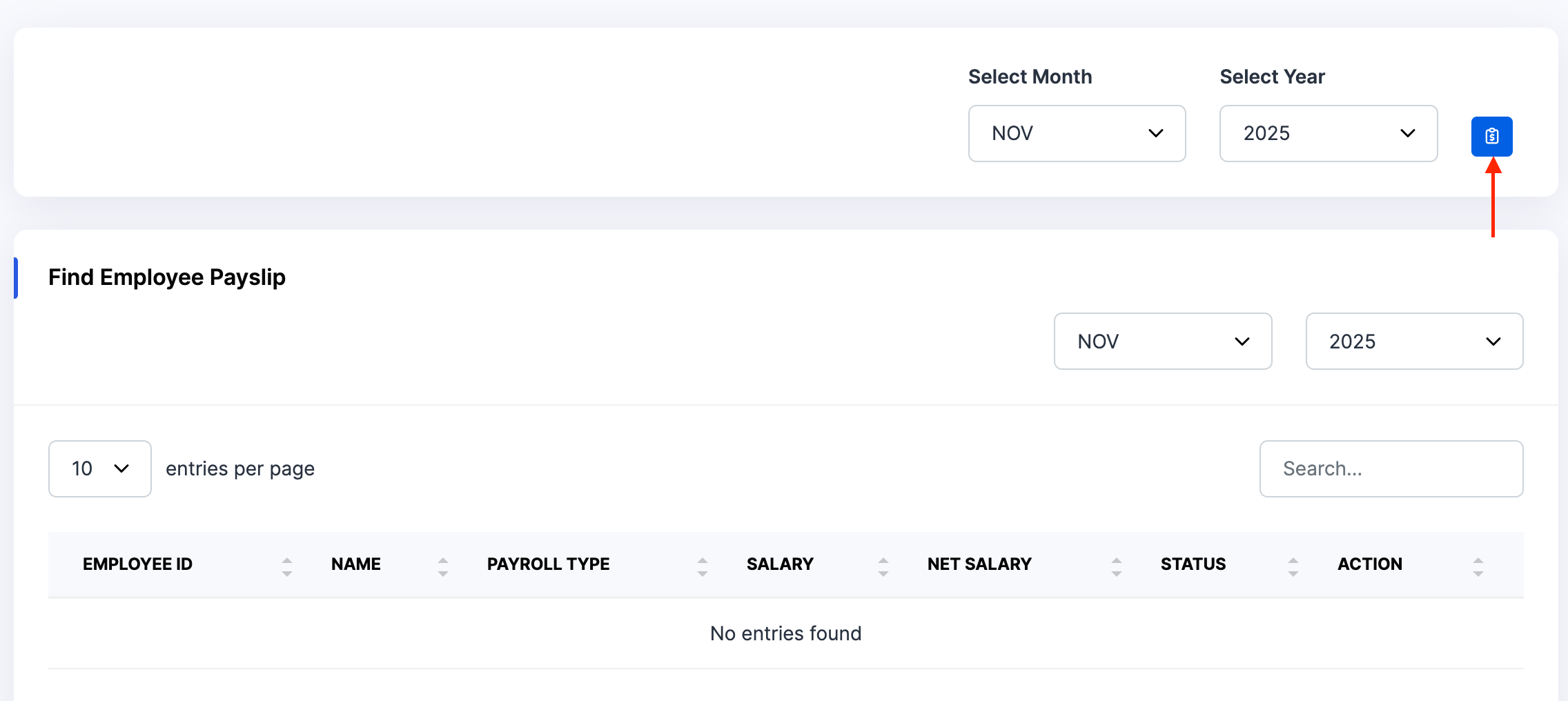
- The system will:
- Calculate payslips for all employees with active salary setups
- Include all salary components: base salary, allowances, commissions, deductions, loans, overtime, and contributions
- Create a payslip entry per employee under the selected month and year
3️⃣ Review Generated Payslips
- Scroll down to the Find Employee Payslip section
- Each row shows:
- Employee ID, Name, Payroll Type, Salary, Net Salary, Status, and Action Buttons
⚠️ If no payslips appear, ensure employees have salary components configured under Set Salary
✅ Best Practices
- Always generate payslips after salary components are finalised
- Use the Search bar to filter by employee name or ID
- Use the entries per page dropdown to navigate large teams
- Confirm Net Salary reflects correct additions and deductions before marking as paid
- Regenerate payslips if salary components were updated mid-cycle
