

Skip to main content
Add Bugs to a Project
Log and track bugs with priority, status, and assignee — enabling clear triage, resolution workflows, and visibility across development teams.
🔐 Access Control
- Only Admin users or staff with bug tracking permissions can add bugs
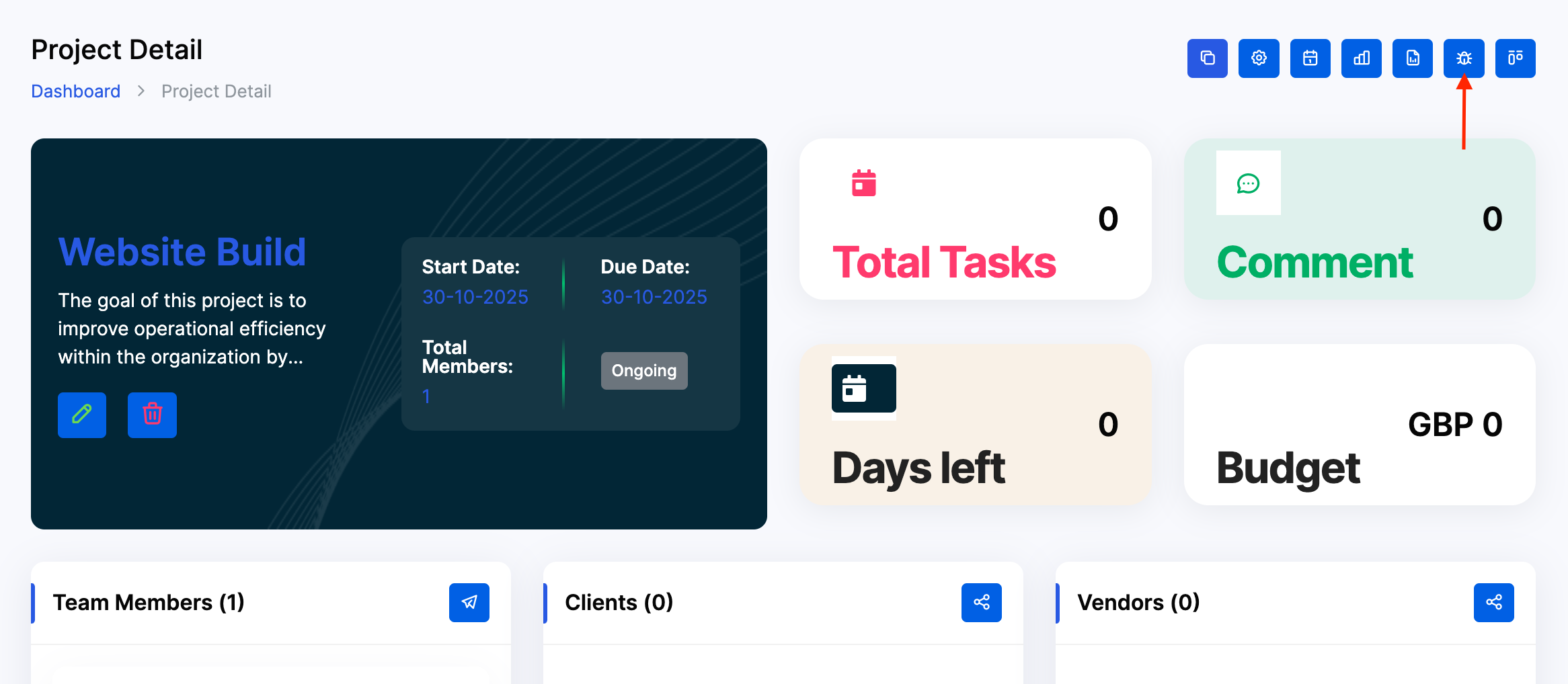
- From the Dashboard, use the side menu to navigate: Projects → Project → Select Project → Bug Report
🧭 Step-by-Step: Add a Bug
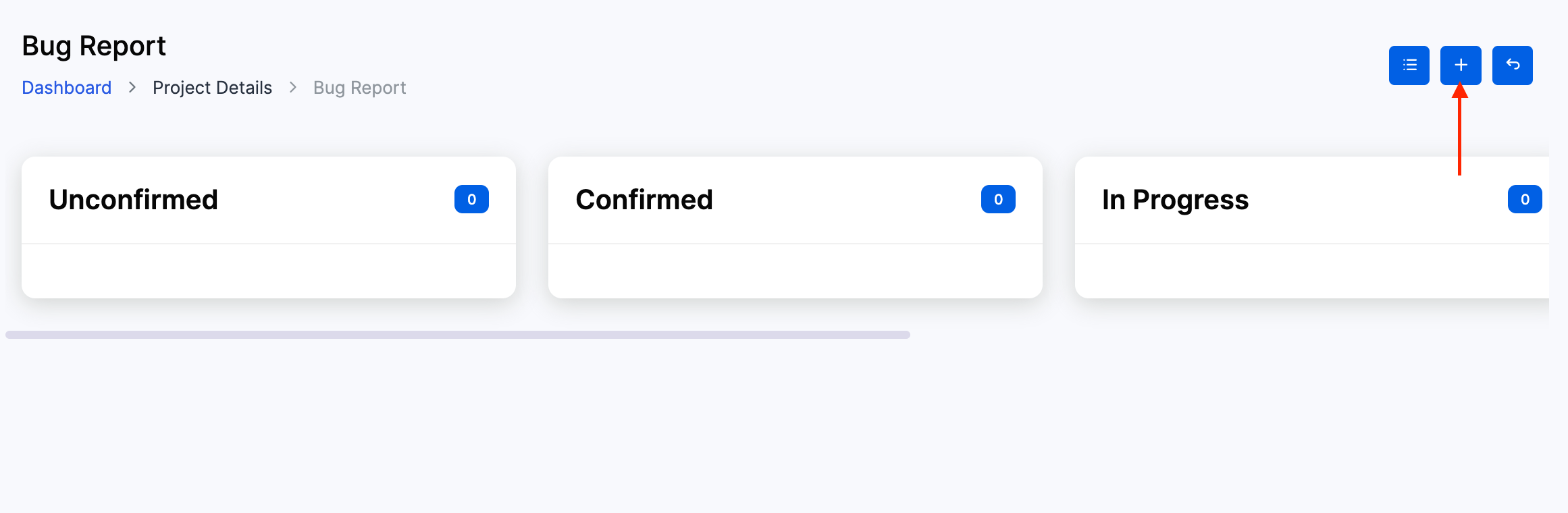
Click the + icon to Add Bug button in the Bug Report panel.
1️⃣ Fill in Bug Details
- Title*: Enter a clear, descriptive bug name (e.g.
Login fails on mobile,Invoice total miscalculates) - Priority*: Choose
Low,Medium, orHighbased on urgency - Assign To: Select the responsible team member
- Status*: Choose the initial bug status:
Unconfirmed,Confirmed,In Progress,Resolved,Verified
- Description*: Add detailed steps to reproduce, expected vs actual behaviour, and any screenshots or references
Click Create to log the bug.
📦 Bug Board Overview
Bugs appear as cards under stage columns:
- Unconfirmed: Newly reported, pending validation
- Confirmed: Verified and ready for assignment
- In Progress: Actively being fixed
- Resolved: Fix completed, pending verification
- Verified: Fix confirmed and closed
Each card displays:
- Priority label
- Bug title
- Assigned user
- Status
🔄 Update Bug Status
To move bugs between stages:
- Click and drag the bug card to another column
- The system will automatically update the bug’s status
- Use this to reflect real-time progress and resolution flow
✅ Best Practices
- Use clear, reproducible titles and descriptions
- Assign bugs promptly to avoid backlog
- Use priority labels to guide triage
- Move bugs through stages as progress is made
- Review bug board weekly to ensure nothing is stalled
- Link bugs to tasks or milestones if relevant
