

Item Import
Bulk upload products, services, or parts into your item list — with full support for pricing, tax, accounts, and warehouse logic.
🔐 Access Control
Only Admin users with the correct permissions can access this feature. From the Dashboard, go to Items → Import.
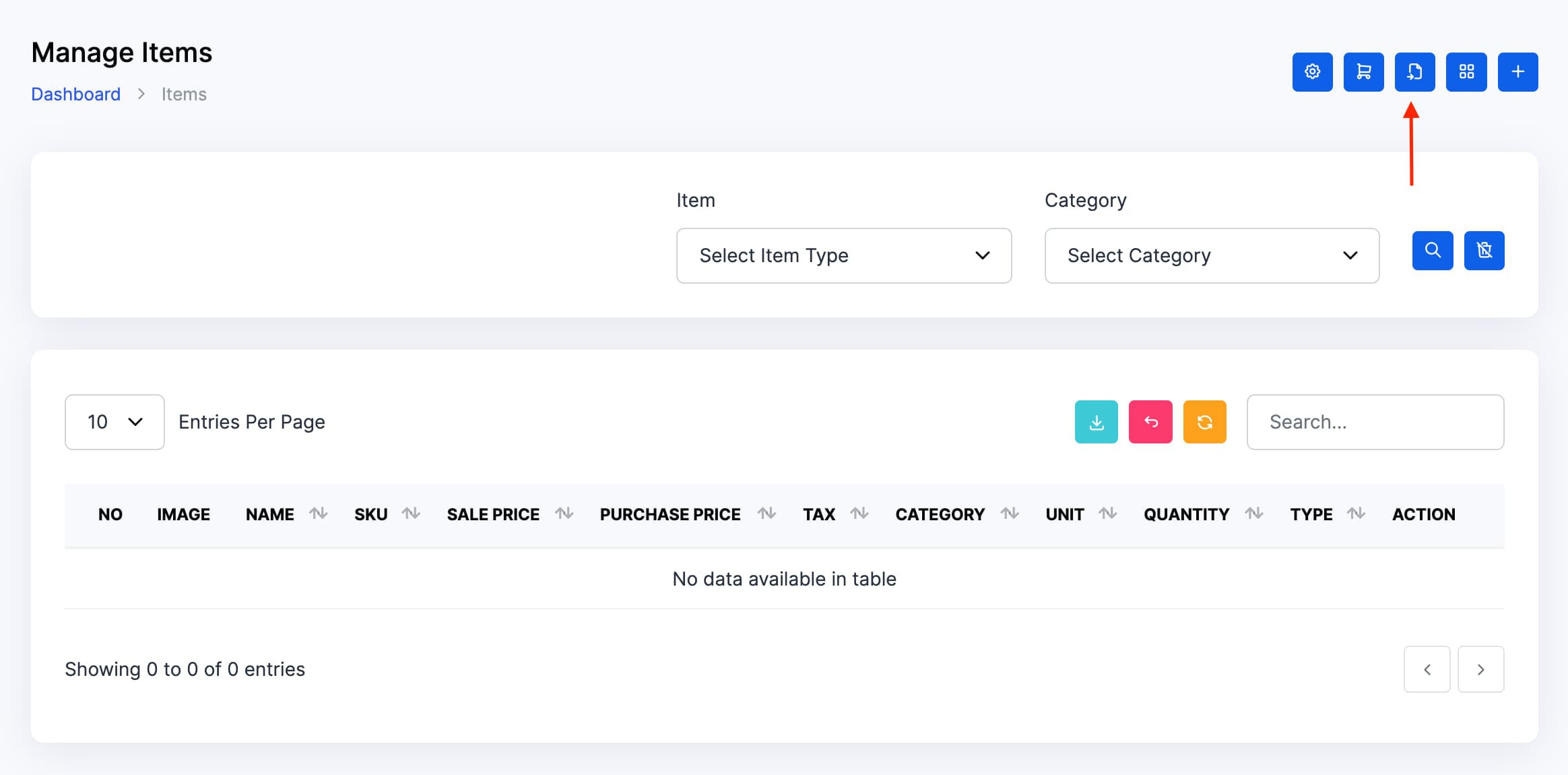
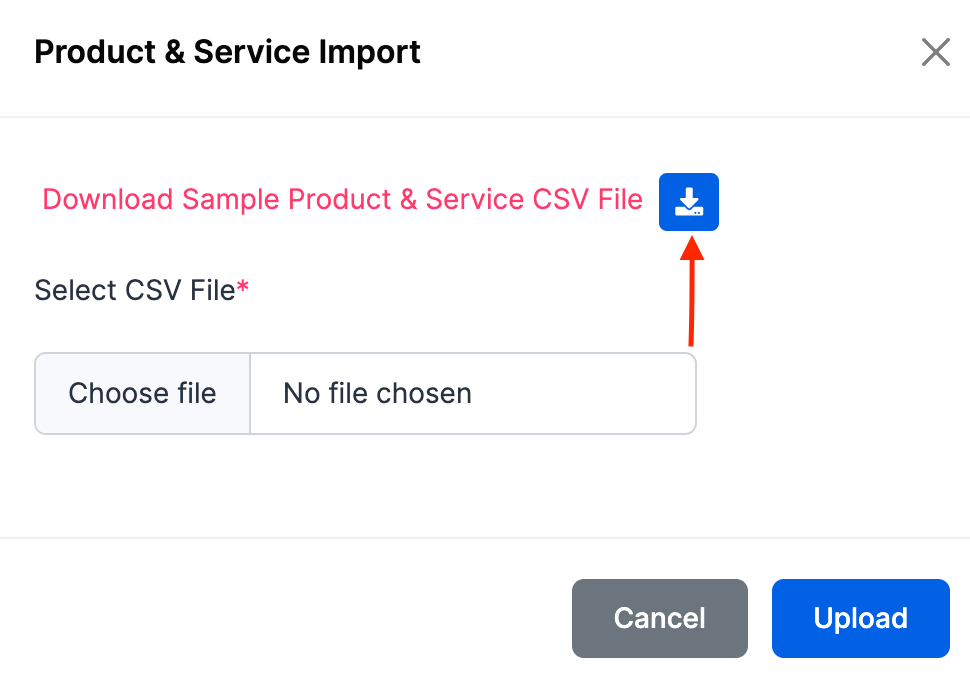
📁 Step 1: Download the Template
Click Download Sample File to get the import template. The file includes all required fields for item creation — such as name, SKU, sale price, purchase price, tax name, category name, unit name, income account, expense account, and quantity.
Need help with the template? If the sample file is missing or unclear, contact support via the Help Centre or your admin dashboard. They’ll provide the latest import format and assist with setup.
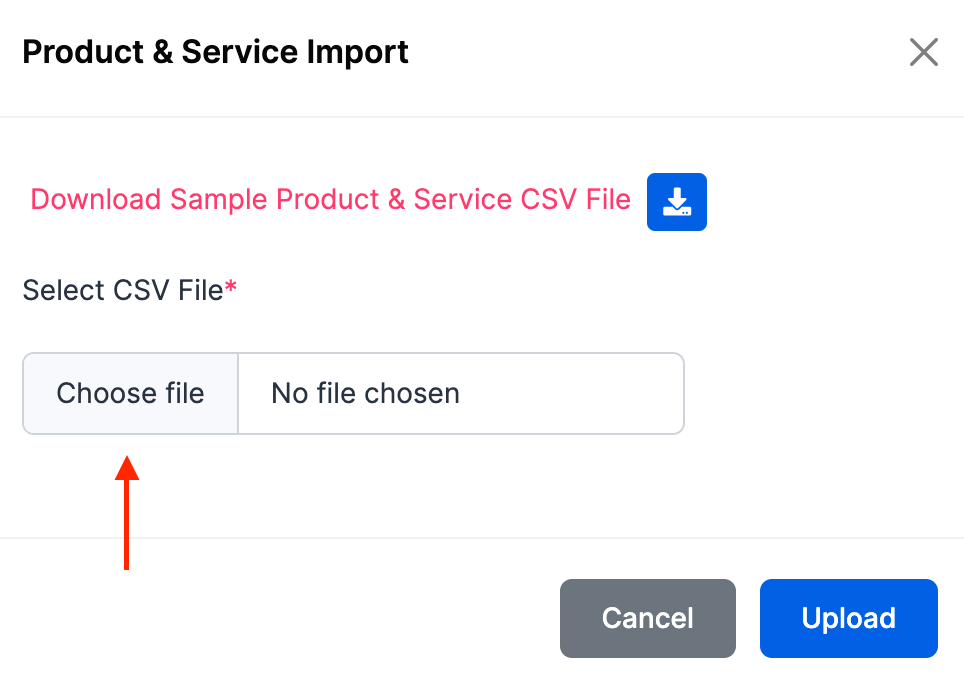
📤 Step 2: Upload Your File
Click Choose File and select your completed import sheet. Then click Import to begin the upload process. The system will validate entries and flag any errors.
⚠️ Common Import Errors
- Invalid Tax Name: Make sure the tax is already created in Accounting Setup
- Missing Category: Create the category first under Item Category
- Unrecognised Unit: Add the unit in Accounting Setup before importing
- Duplicate SKU: Use unique SKUs or update existing items manually
✅ Best Practices
- Test with 1–2 items before full import
- Use clean, sector-fit naming for clarity
- Match all references to existing setup (Tax, Category, Unit, Accounts)
- Review imported items for accuracy before issuing invoices or bills
- Archive unused items to keep inventory lean
